Personalizing Reports via API
Overview
IO Reports can be personalized with agent-specific branding — including contact information, biography, logo, and more — so that every report reflects the agent's identity and local expertise. When generating reports with the API, personalization is applied at the bearer token level: each user gets their own token tied to a unique agent_id, and any report generated with that token automatically includes that agent's configured profile.
Agent personalization is always loaded at render time. If a user updates their photo, contact details, or biography after a report has been shared, the shared report URL will reflect the latest profile data the next time the report is accessed.
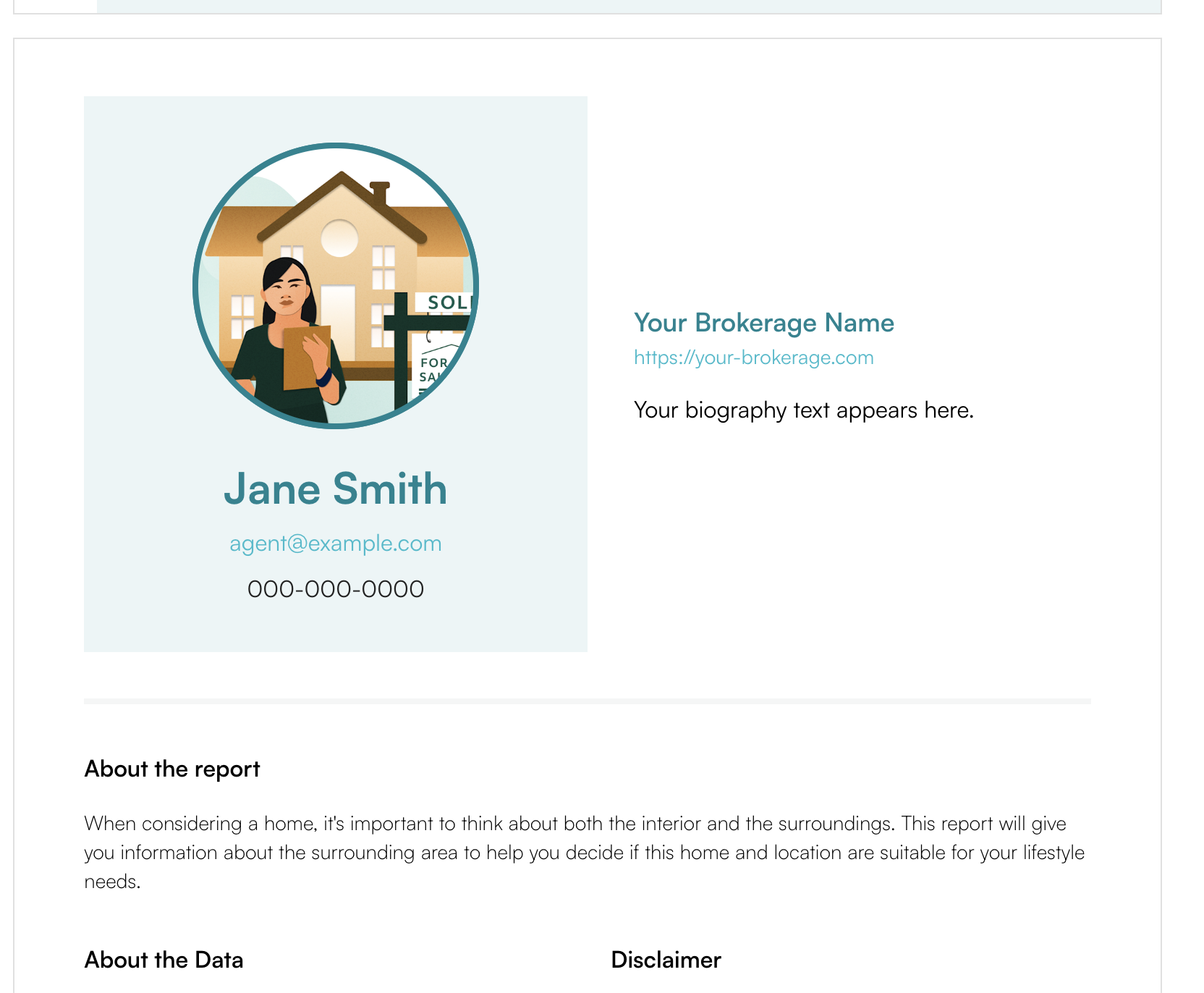
How Personalization Works
A personalized profile in IO Reports API is associated to an agent_id. Reports generated without an agent_id will display default (non-personalized) branding. To onboard your users with a personalized profile, you can follow these steps.
1: Set an agent_id
The agent_id is a value defined by your system. It must be unique per agent and used consistently — using different agent_id values for the same user will create separate, unlinked profiles and break personalization.
Common formats include:
- Member ID
- CRM ID
- Email address
- Internal user ID
{
  "agent_id": "agent_12345"
}
2: Generate a bearer token
Retrieve a bearer token scoped to the user by calling the Local Logic OAuth endpoint. This token is required for both configuring the agent's profile and generating personalized reports. Click here for details on how to generate the token with or without an agent_id.
Never expose your client_id or client_secret in client-side code or public websites. Unauthorized users could use them to generate or modify reports. The returned bearer token is also sensitive — it is safe to store on internal pages, but must not be stored on public-facing sites.
3: Update the agent profile
With the agent's bearer token, update their personalization fields. These fields appear on the generated report alongside the logo.
For full details on request parameters, code examples, and response format, see the IO Reports API reference.
4: Upload the agent logo
Upload the agent's logo using their bearer token. The logo is displayed on the cover and throughout the generated report. This step is optional if you don't want a logo or profile photo on reports.
For full details on request parameters, code examples, and response format, see the IO Reports API reference.
Step 5: Generate personalized reports
Once the agent profile is configured, generate reports using the same agent bearer token. Reports generated with that token will include all configured agent personalization. You do not need to repeat steps 2-4 again unless you need to edit or change the profile.
Each time you want to generate reports for an agent, use an unexpired bearer token which was fetched with that agent_id.
For full details on request parameters, code examples, and response format, see the IO Reports API reference.
Common Issues
- Using different
agent_idvalues for the same agent — this creates separate unlinked profiles; always use a single consistent identifier per agent. - Generating reports before updating the agent profile — the report will render without personalization until this setup is complete; configure the profile first.
- Using a generic (non-agent) bearer token — reports generated without an
agent_idwill display your default branding without an agent profile. - Expecting personalization without completing the profile — only fields that have been set will appear on the report; an incomplete profile results in partial or no personalization.
- Exposing credentials on the client side —
client_id,client_secret, and bearer tokens must only be handled server-side or on internal pages.